Showing posts with label CATIA. Show all posts

Wednesday, 11 February 2015

My Part in Mini Group Project: The Excavator Base

Assalamualaikum and Hi.
This time I'm trying to post something different than I'm usually post on youtube.

It's about my part in our mini project for CAD subject in this semester. We were given a task to draw something related to agriculture tools or machine by using Catia V5. My group member got the drawing but with no dimension. So, we just randomly set the dimension except the certain parts that need to connect to the other parts. 

I'm just a beginner in catia and most of the method I used in this video are came from trial and error. So, if you have any better suggestion, you may leave a comment below. Thank you. ^_^

Thanks for watching.

Music used:
1. Haha, Taw (With Gary of LeeSsang and Kim Greem)


2. Beep by Park Ji Yoon


My Part in Mini Group Project: The Excavator Bucket

Assalamualaikum and Hi.

This time I'm trying to post something different than I'm usually post on youtube.

It's about my part in our mini project for CAD subject in this semester. We were given a task to draw something related to agriculture tools or machine by using Catia V5. My group member got the drawing but with no dimension. So, we just randomly set the dimension except the certain parts that need to connect to the other parts. 

I'm just a beginner in catia and most of the method I used in this video are came from trial and error. So, if you have any better suggestion, you may leave a comment below. Thank you. ^_^

Thanks for watching.

Music used:
1. Gatsu No Serenade by Suga Shikao
2. Tamagawa song in Honey And Clover.


Wednesday, 24 December 2014

Mini Project Catia (Part: Technical Problem)

Technical Problem pula nak buka part Assembly.


Emosiku berkocak.
Buku final exam pun tak belek lagi ni.
29 ni dah mula Final Exam.

Nak progress futher pun sudah nda boleh.
Sebab guna part Assembly tu juga.
Doushite? Nokuro? Ngini eh? Wae? oh why?
Semalam buka okay ja.
Hari ni tak okay pula.
Esok dah nak kena hantar.
Nasib video assembly tu ok. Alhamdulillah.
Kalau tak,
bercucuran juga air mata aku on this instant.
Aku hanya boleh berharap pensyarah aku terima project ni.
Huhuhu


"Tamagawa"
Vocals: Spitz
Music, Lyrics: Kusano Masamune

Monday, 20 October 2014

My 19 October 2014

Assalamualaikum W.B.T / Annyeonghaseyo.

My second sister just called me at 9.35 am which wake me up from sleeping. She expect me going home this mid semester break, because my young brother and her are coming home for this mid semester break. I told her that I didn't going back to Sabah for this mid semester break. I didn't even open the air asia web page to look up for ticket. I decided to going back at the end of this semester, Insya-Allah.

So, I wake up, went to the living room with my laptop. Here I go again.
This time, was my exactly Catia Assignment. 4 Figures need to draw.

Question 1: Figure T6.5
As I saw straight line and rectangle shape, one word came out on my mind 'OFFSET'!
This will be a lot of offset line.
One of my lecturer commented as he saw my drawing progress,
"Banyaknya line Amal."
and I just smile without looking back. 
I'm just too immersed into this. 
HAhahaha
Step 1.
Let's start with the Sketcher.
I choose black color for the background with grid line. 

Step 2.
→Starting with select the zx plane one the specification tree then click 'Sketcher' icon.
[I'm not familiar with constructing line according to Vertical and Horizontal point s drawing, so actually I start with drawing a rectangle shape and offset those line until I got the intersection line. ]
→Remove all the aid lines so it will be looks like this.


Step 3.
→Got the zx plane view shape, click 'Exit Workbench' icon.
→Click the zx plane (the Sketch.1).
→Click 'Pad' icon until 'Pad Definition' pop up.
→Type: Dimension.
→Length : 42 mm
→Selection : Sketch.1
→Click 'Preview' then 'OK'.

Step 4.
→After pad operation, it will appear like this.
→Don't confuse with the 3 stripe white color, it because I forgot to turn of the lighting effect.
→So, I select the yz pad plane as shown in figure below then click 'Sketcher' icon.

Step 5.
→Entering sketcher, the plane will faced like this.
→By using aids from the offset lines, I drew the rectangle shape [red line].
→Click 'Exit workbench' icon.

Step 6.
→Click the 'Pocket' icon until the 'Pocket Definition' table pop up.
→Type: Dimension
→Depth: 10mm
→Selection: Sketch.2
→Click 'OK'.

Step 7.
→Repeat Step 4, 5, and 6 at the other side.
[Mr. Fendi had thought me how to do the mirror by using a plane, 
but suddenly, I forgot already the actual steps, so I just do it like this. If anyone have a better way to do this, I gladly appreciate it. =) ]
→Select the pad plane as shown below and click 'Sketcher' icon.

Step 8.
→Entering the sketcher, it may faced like this.
→The yellow lines are Offset line just find the middle.
→I drew the circle at the center with diameter of 10 mm.
[Oh ya! I'm not really sure about this, but as shown at the question. It stated that 'Through Hole 20 Diameter. Maybe it should be done by 'Hole' method, but yeah, I not quite sure how it works, so I just used 'Pocket' method.] So, this is how it looks after the pocket operation.

Step 9.
I just want to view this with another option,
so I select the 'Shading with edges and hidden edges' view. 
It's clearly show us the hidden drawing.


Step 10.(Extra but not so important) =D
→ Color: Red and white.
→Lighting: On
→ Just another classy finishing kunun. Ha3. Chill bro.

Xie Xie

Syukran

Arigato Gozaimasu

Kamsahamnida

Terima Kasih

Thank You

 for reading and judging? perhaps? hehehe

Alhamdulillah.

p/s: Have any suggestion? Just drop your comment below. I might consider it with calm and passion. Kunun. hehehe

Sunday, 19 October 2014

My 18 October 2014

Alhamdulillah, it's mid semester break.
Yet, it doesn't mean that me as a student may enjoy it like a honeymoon without assignments, tutorials, lab reports, and not to forget the list of mid semester test are waiting a head as soon as the mid semester break is over.

So, I began with my CAD's assignment.

My lecturers gave us 10 pieces of diagrams, 6 of it were our tutorial which should be done during class and another 4 pieces are our assignment.

Alhamdulillah, I had finished drawing 5 of 6 during the class session.
So, this would be the 6th diagram drawing session 
which I proceed at Kolej Kediaman Wang Ulu, Kangar, Perlis.

6th Drawing : Figure T5.12


Step 1.
Open Catia V5R16 

I used Part Design under Mechanical.

Step 2.
→Select the zx plane on the specification tree on the left side.
→Click the sketcher icon.
→ Draw the box with it's  width and height.
→ Oh! I used offset line to the the middle.


→Then, yes offset line again and again to get the intersection point. I just know the advantages of offset this semester. I never familiar with offset when I was learning Autodesk Inventor in my diploma at semester 5 (if I not mistaken) or AutoCAD during at degree semester 1.


→ Got the intersection point, I drew a new line based on it. Then remove all the offset line. So, This is how it's look like.


Step 3.
→After I got the shape on zx plane. 
→Click the icon 'Exit Workbench'.
→Click the 'Pad' icon.
→Select the sketch on zx plane until the 'Pad Definition' pop up.
→The diagram shown thickness in 40 mm, I wrote 40mm in the 'Length:' blank box.
→Likely, I prefer the pad went backward, so I clicked the 'Reverse Direction'.
→Then, click on 'Preview' to see how is it looks like.


Step 4.
→Select the xy plane on the specification tree.
→Draw the box, I used the offset method.


Step 5.
→Click 'Exit workbench'.
→Click 'Pocket' icon (the orange icon as shown below) until the 'Pocket Definition' table pop up.
→Type: Dimension.
→Depth : 18 mm
→Selection: Sketch 4 ( the box)
→Then, click 'Preview' to view the effect of pocket operation.


Step 6.
→This is how it supposed to be done.
→Then, select the pad as shown in the figure below.

Step 7.
→ Select the pad and click 'Sketch' icon.

Step 8.
→On the pad plane, draw a box shape.
→Click 'Exit Workbench' icon.
→ Click 'Pocket' icon, until the 'Pocket Definition' table pop up.
→Type: Dimension.
→Depth : 100 mm
→ Selection : Sketch.5 (the box shape)
→ Click 'Preview' to preview the effect after pocket operation.
→ Then, click 'OK'.

Step 9.
→ Then, tadaaaaa~
→It should be looks like this.

Step 10. (Extra option)
♥As my lecturer shown this function of coloring.
♥So, why not I applied it together in this drawing.
♥It because my lecturer encouraged us to play and used all the function in the CATIA software.
♥So, this feels like playing game.
♥I don't think I was studying or working at all.
♥Maybe, because I know how to do it? and it's quite fun?
♥I don't know or realize how long I spend my time to do only this figure T5.12.
♥Because sometimes, I found its quite confusing and hard to find a way to do the certain part,
but still, keep trying.
♥So, the final appearance of the Figure T5.12 is like this.
(^______^)v


Anyway, there are a lot ways can be used to draw this figure. 
This is the only way that I know how to do it.
It anyone have suggestion to do this better or improve my step in advance.
[Anything comment about grammar also can do. hehehe]
Just drop your comment okay.
I gladly appreciate it. ^____^
Thanks for reading.

P/s: I'm still a beginner and new to CATIA. So, don't ask me about the comparison of CATIA and other product or asking the advanced function of CATIA. Honestly, I don't know. I just spilled out here what I understand during my CATIA class lesson. Oh ya, I'm still weak at tangent though. =D

Sunday, 21 September 2014

My 21 September 2014

Apa cerita kamurang hari ni?

Cerita aku...

Kawan kelas ajak buat tugasan CATIA, dan sorang lagi nak datang hantar buku yang aku pesan sambil buka juga tugasan CATIA, Nisa namanya, org Perak. Ada juga la, belajar CATIA, dia dah siap buat, aku pula belum mula satu apa pun.

Jadi kena siapkan tugasan yang pensyarah subjek CAD bagi pada hari Jumaat lepas (19 September 2014). Lukisan ada 4. Kami dah buat dua lukisan tu pada hari pertama kelas dalam masa 4 jam, sebab baru nak belajar guna CATIA kan.

Kertas Tugasan


Figure T2.4 (b)

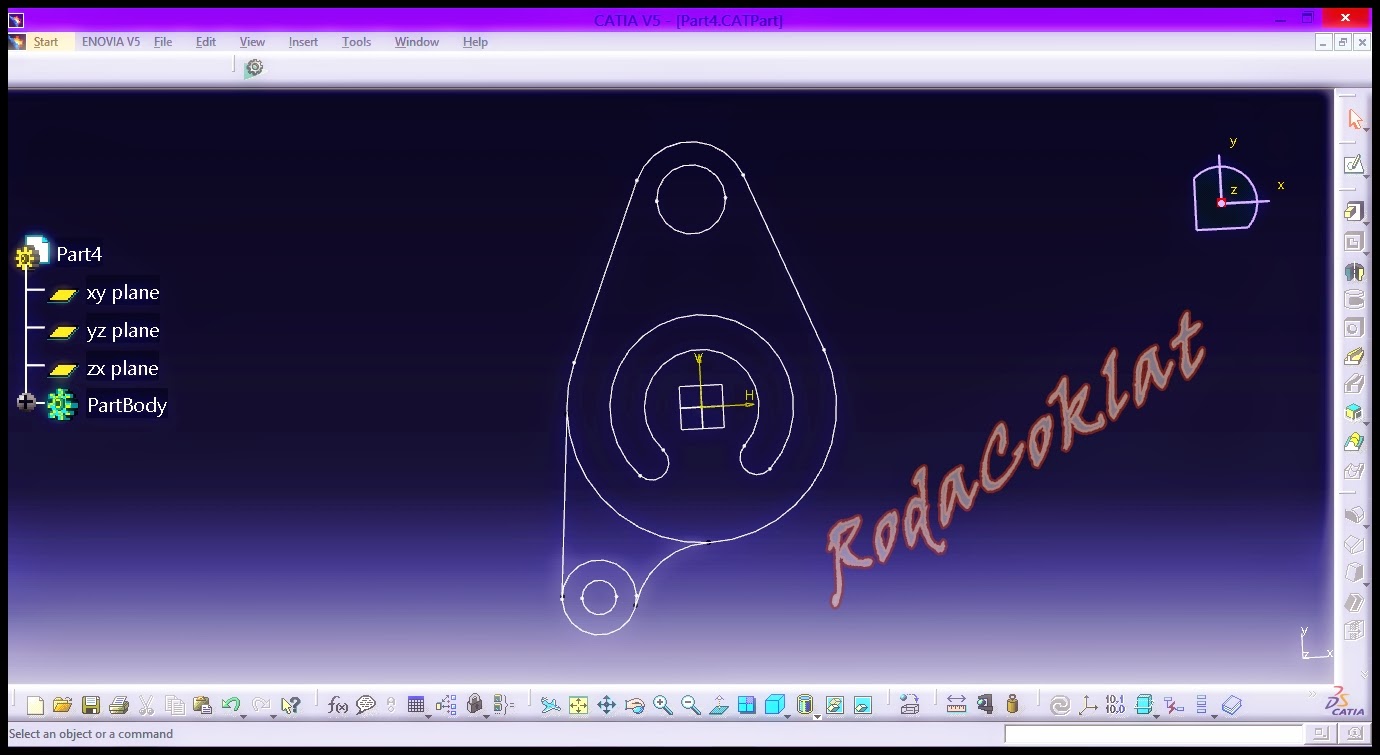
Masa ini, aku ada masalah dengan bulatan kecil di bawah tu bila aku nak buat tangent dengan garisan lurus di atas tu. Secara automatik radius bulatan tu mengecil pula. Ini antara perkara baru yang aku jumpa masa buat tugasan CATIA ni. Geram juga kadang-kadang.

Dah siap! (Pada pandangan aku lah). Ada satu perkara yang aku hairan amat, sehinggakan aku bawa laptop aku berjalan pi jumpa dengan pensyarah di depan waktu kelas dah habis. "Kenapa ada dua warna, hijau dan putih?" Pensyarah kata itu biasa ja. Asalkan jangan warna ungu, sebab kalau warna ungu itu maknanya dah Over Constraint.

Pandangan setelah keluar dari Sketcher.
Oh ya! Ini aku guna paksi XY plane masa buat dalam Sketcher. 


Figure T2.4 (a)

Rakan kelas aku, Farahim, telefon tanya pasal nak buat 6 bulatan kecil tu, masa aku tengah buat lukisan di atas tu. Malangnya aku terlupa langkah-langkah nak buat rotation tu. Masa nak buat ini pun, aku pun hampir mati kutu nak ingat langkah-langkahnya. Alhamdulillah, ingatan aku masih di tahap yang ok lagi. Teringat cara-cara buat masa dalam kelas Jumaat lepas. Agaknya, kalau aku tak follow up dalam kelas, sah aku tak tahu nak buat rotation ni.

Bulatan yang beradius R105 tu, aku guna 3 point circle. 
Wujud juga perasaan 'Eh, betulkah juga ni?' masa aku buat tu, tapi entah lah, banyak style Try and Error ja yang aku buat dalam CATIA ni. Kena tanya pensyarah juga ni.

Alhamdulillah, dah siap. 
Mula tadi dalam jam 8.30 mlm, 
habis buat dua lukisan ni lebih kurang jam 11.58 mlm juga lah. Lama juga~! Takpa mal. 
Keep calm and upgrade, Insya-Allah.

Tiba-tiba rasa nak jadi pensyarah CAD pulak. hehehe


Al-Fatihah.

Selamat Malam, baca doa tidur ya.

Assalamualaikum, Konbanwa.